
How to clean up messy column headers
Fix inconsistent, duplicated, or blank column headers so your file imports cleanly and every tool can find the right column.
By Operelio team · Updated July 2026
On this page5
Why headers matter
Headers are how every tool and every CRM finds your columns. When they are inconsistent, an import maps the wrong field, or none at all. Messy headers usually mean extra spaces, mixed casing, duplicated names, blank cells in the header row, or a title row sitting above the real headers.
The damage is quiet. A CRM import matches First Name but skips ' First Name ' with a stray space, a lookup formula returns errors it never explains, and two columns both named Phone overwrite each other on import. Fixing the header row first makes every later step behave.
What messy headers look like
Common problems in a header row:
| Problem | Example |
|---|---|
| Extra spaces | A header like ' First Name ' with leading and trailing spaces |
| Mixed casing | EMAIL, Email, and email across different files |
| Duplicate names | Two columns both called Phone |
| Blank headers | A column with no name at all |
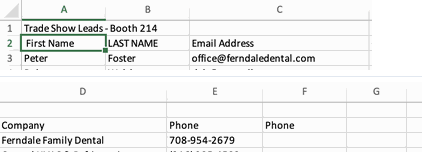
| A title above the headers | Row 1 is a report title; the real headers sit in row 2 |
Fixing headers by hand in Excel
The manual fix is a sequence, and the order matters: get the headers into row 1, clear the invisible junk, then standardize and de-duplicate the names.
Delete any title rows
If row 1 is a report title and the real headers sit in row 2, right-click the row 1 number and choose Delete so the headers become the first row. Imports, sorting, and filters all assume headers are row 1.
Unmerge merged header cells
Select the header row and toggle off Home, Merge & Center. A merged header spanning two columns leaves one of them unnamed the moment you sort, filter, or export.
Trim the spaces
In a blank row, enter =TRIM(A1) and fill it across. TRIM misses non-breaking spaces, which paste in from web pages and look identical to normal ones, so use =TRIM(SUBSTITUTE(A1,CHAR(160)," ")) to catch both.
Standardize the names
Pick one convention and apply it everywhere. Lowercase with underscores (first_name, email, phone) is the safest: no spaces to trim, no casing to mismatch, and every import tool matches it. =LOWER(SUBSTITUTE(TRIM(A1)," ","_")) does it in one formula.
Rename the duplicates
Excel will not warn you about two columns named Phone. Put =COUNTIF($A$1:$Z$1,A1) in a spare row to spot any header that appears more than once, then rename each to something unique, like phone and phone_2.
Replace the formulas with values
Copy your fixed header row, right-click the original headers, and choose Paste Special, Values. Then delete the helper row. Skip this and the headers break the moment the helper row goes.
Headers that look like First Name arrived with the wrong encoding. Do not fix them by hand: re-import the file with Data, Get Data, From Text/CSV and set File Origin to UTF-8, and the whole file comes in clean.
Clean every header in one click
Operelio's Clean Headers tool standardizes the whole header row in one pass, and it is free on every plan. Every header is converted to lowercase with underscores between words, special characters are stripped, spaces and invisible characters are trimmed, and duplicate names get a numbered suffix, so Phone and Phone become phone and phone_2. Only the header row changes; every data row below it is preserved exactly as it was.
Upload .csv, .xlsx, or .xls and download the cleaned file. One thing to do first: if a title row sits above your headers, delete it before uploading, since the first row of the file is treated as the header row.

Trim, standardize, and de-duplicate every column header in one click.
Frequently asked questions
Why do my column headers break my CRM import?
Because the import matches columns by their exact header name. Extra spaces, mixed casing, duplicate names, or a title row above the headers all stop the right field from matching, so the import either skips the column or maps the wrong one.
How do I remove extra spaces from column headers in Excel?
Use =TRIM(A1) in a spare row, fill it across, then paste the results back over the originals as values. If the file passed through a web page, add SUBSTITUTE(A1,CHAR(160)," ") inside the TRIM to catch non-breaking spaces, which TRIM alone misses.
How do I fix duplicate column names?
Make each one unique, because two columns with the same name silently overwrite each other in most imports. In Excel, spot them with COUNTIF across the header row and rename by hand. Operelio's Clean Headers does it automatically: the first column keeps the clean name and later ones get _2, _3, and so on.
What is the best format for column headers?
Lowercase with underscores and nothing else: first_name, email, phone. There are no spaces to trim, no casing to mismatch between files, and no special characters for an import tool to reject. It is the format Clean Headers converts every header to.
Does cleaning headers change my data?
Not with Clean Headers. It modifies only the header row; every data row below is preserved exactly as it was, and nothing is moved, merged, or deleted. When fixing by hand in Excel, the risky moment is deleting helper rows before pasting values back.
Ready to get started?
Upload a file and run your first transformation. Free, no credit card required.