
Pro
CSV to formatted Excel
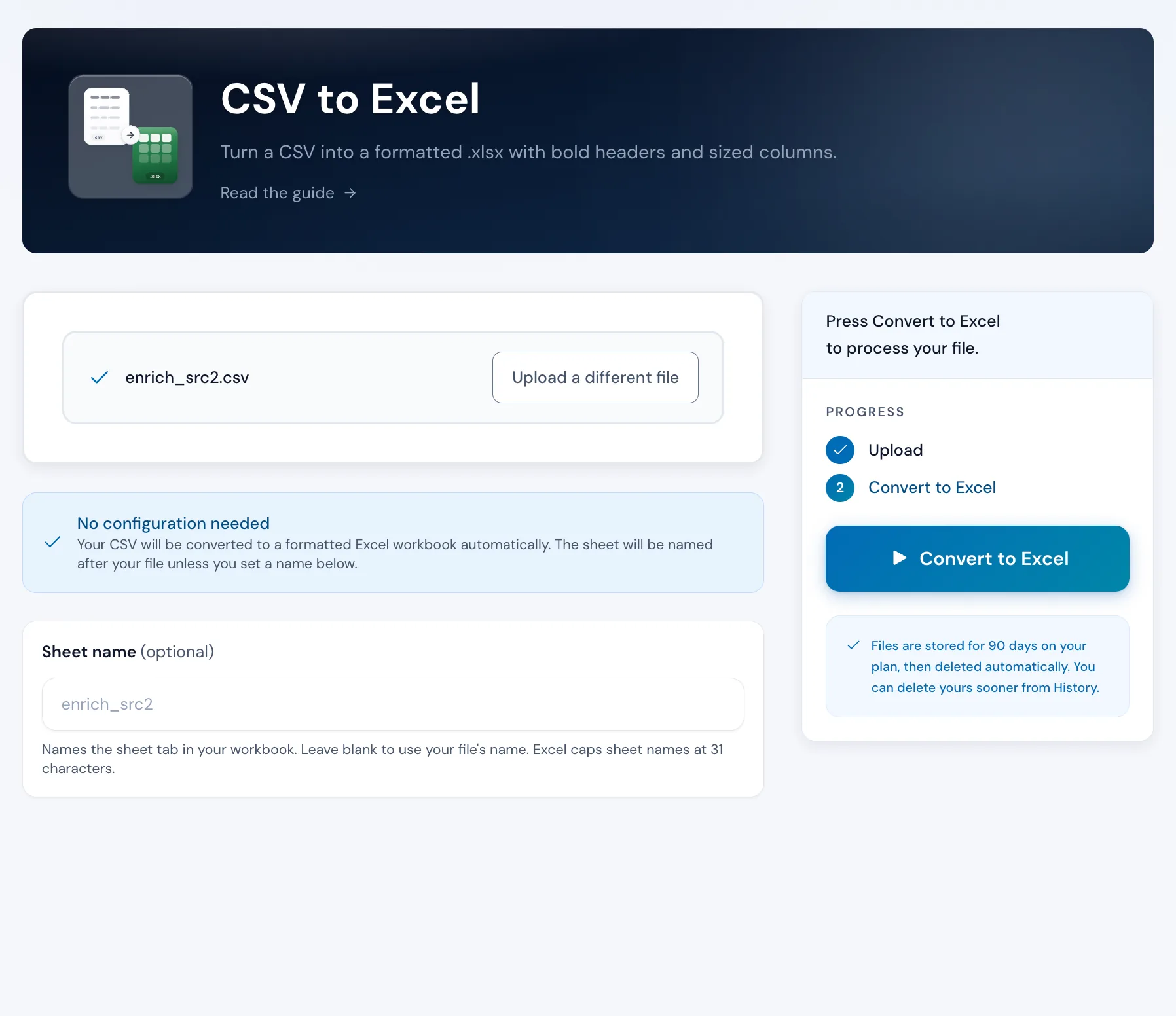
Upload a CSV and Operelio turns it into a formatted Excel workbook. Columns are auto-sized, headers are bolded, and values come through exactly as uploaded: no silent conversion to scientific notation, no lost leading zeros. Ready to share or present without any manual formatting.
Available on Pro, Team, and Agency plans. Free tools (including Excel to CSV) are available without upgrading.
What it does
A polished workbook from a plain text file
IDs stay intact
Long numeric IDs and leading-zero codes come through as text, so a long phone number or a 01234 ZIP doesn't get mangled into scientific notation like it would when double-clicking a CSV in Excel.
Auto-sized columns
Column widths are sized from the actual data (sampled across the first 100 rows), capped at 50 characters. The file opens ready to read without resizing.
Bold, readable headers
The first row is bolded so headers stand out. One professional detail that makes the workbook look hand-formatted the moment it's opened.
Works in every spreadsheet app
The .xlsx output opens in Microsoft Excel, Google Sheets, Apple Numbers, and LibreOffice Calc. Same file, every platform.
No desktop Excel needed
Convert in your browser on any OS. No license, no Text Import Wizard, no Save As dance. Up to 50,000 rows on Pro, 75,000 on Team, 150,000 on Agency.
Ready to hand off
The workbook is formatted the same way every time, so you can drop it into a client folder, an email attachment, or a shared drive without touching it first.
How to use it
Three steps to a formatted workbook
Upload your CSV
Drag and drop any .csv file. Operelio reads the headers and data for you.
contacts_export.csv
9 columns, 5,875 rows
Preview the output
Check the formatted preview. Bold headers and auto-sized columns are applied, and every CSV value comes through as uploaded.
Download your workbook
Click Run and download a .xlsx file that opens in Excel, Sheets, or Numbers. Ready to share or present.
Formatting
What your data looks like in Excel
Every value in your CSV comes through intact, so the workbook matches what you uploaded.
| CSV input | Excel output | Why it matters |
|---|---|---|
| 01234 | 01234 | Leading zeros preserved on ZIPs, SKUs, and account codes. Excel won't silently strip the 0 down to 1234. |
| Leading zeros preserved on ZIPs, SKUs, and account codes. Excel won't silently strip the 0 down to 1234. | ||
| 07123456789 | 07123456789 | UK mobiles and long numeric IDs stay intact. No scientific notation like 7.12E+09 creeping in from Excel's autodetection. |
| UK mobiles and long numeric IDs stay intact. No scientific notation like 7.12E+09 creeping in from Excel's autodetection. | ||
| 45000 | 45000 | Numeric values come through as the exact string you uploaded. Excel still sums them with =SUM() and sorts numerically when the column is clean. |
| Numeric values come through as the exact string you uploaded. Excel still sums them with =SUM() and sorts numerically when the column is clean. | ||
| 2026-01-15 | 2026-01-15 | ISO dates display and sort lexicographically in the right order. Excel won't reformat text cells to '15-Jan-26' or similar. |
| ISO dates display and sort lexicographically in the right order. Excel won't reformat text cells to '15-Jan-26' or similar. | ||
| TRUE | TRUE | Boolean-looking values stay as literal text. Excel won't convert them to a checkbox or a 1/0 numeric. |
| Boolean-looking values stay as literal text. Excel won't convert them to a checkbox or a 1/0 numeric. | ||
| café, über-friendly | café, über-friendly | UTF-8 preserves accents and non-Latin scripts. Commas inside cell values are auto-handled by the CSV parser. |
| UTF-8 preserves accents and non-Latin scripts. Commas inside cell values are auto-handled by the CSV parser. | ||
Headers are bolded. Column widths are sized from the first 100 rows and capped at 50 characters so wide columns wrap instead of stretching across the screen.
The alternative
Doing it yourself
This is what CSV formatting looks like without a tool.
Open in Excel and format
3-10 minutes per file
Manual formatting every time. Excel silently converts long numbers to scientific notation and reformats dates on open.
With CSV to Excel
Under 10 seconds
Professional formatting applied for you. Same result every time, no manual steps.
The wrong file format might not be the only problem in that file
Upload it and Bridgeant reviews the file before you commit to a tool. It reports what it finds, orders the problems by how much they actually matter, and points you at the tool for each one. That is on every plan including Free, and it works from a summary of your file rather than the contents.
On Pro and up it stops advising and starts doing. Describe the job in a sentence and Bridgeant plans the steps, shows you the plan, and runs them in the right order once you approve. You are not running four jobs by hand and trying to remember which came first.
See how Bridgeant worksPricing
Available on Pro, Team, and Agency.
CSV to Excel is a Pro feature. Free accounts can use Excel to CSV (the reverse direction) at no cost. Pro supports up to 50,000 rows per file, Agency up to 150,000. If your file is larger, Operelio processes the first N rows up to your plan's limit and shows a banner on the results page with your file's total row count, the limit that was applied, and the number of rows processed.
Common questions
CSV to Excel FAQ
Why is CSV to Excel a Pro feature?
Excel output requires generating a formatted .xlsx file with styled headers and auto-sized columns, which is more resource-intensive than CSV output. Excel to CSV (the reverse) is free on all plans.
Can I open the output in Google Sheets or Numbers?
Yes. The .xlsx output is compatible with Microsoft Excel, Google Sheets, Apple Numbers, and LibreOffice Calc.
Will numbers and dates come through correctly?
Yes. Values come through exactly as they are in the CSV, with leading zeros on IDs preserved and no silent conversion to scientific notation. Excel coerces clean numeric columns for SUM and sort when you open the file, and ISO-formatted dates display and sort in the right order.
How wide will the columns be?
Column widths are calculated from the actual data (sampled from the first 100 rows). Long values are capped at a readable maximum so columns don't stretch across the screen.
Can the output be a workbook with multiple tabs?
A CSV has no tabs, so the converted output is a one-tab workbook. To turn one list into a multi-tab workbook, run Split File with tabs output instead: it groups rows by a column's values and writes a tab per group.
Is there a row limit?
Pro supports up to 50,000 rows per file. Team supports up to 75,000 rows. Agency supports up to 150,000 rows. File size limits are 25 MB on Pro, 35 MB on Team, and 100 MB on Agency.
Can I customize the formatting?
The current version applies a standard professional format: bold headers and auto-sized columns. Custom formatting options like colors and borders may be added in a future update.
Does my Excel output have merged cells?
No. Every cell in the CSV becomes an individual cell in Excel. Merged cells are an Excel-only concept; the conversion is one-in, one-out per cell. If you need to merge cells in the output, do it in Excel after downloading.
What happens to blank rows and columns?
Every row and column in your CSV is written to the workbook as-is, including blank cells and blank rows. If you want those trimmed, clean the CSV before uploading or run Deduplicate afterwards on the downloaded file.
How long is my data kept on your servers?
Uploaded files and outputs are retained for 24 hours on Free, 30 days on Pro and Team, and 90 days on Agency. After that, they are permanently deleted from storage. You can delete any file manually at any time on any plan.
Can I automate CSV to Excel via an API?
Yes, on the Team and Agency plans. You get API access to upload files, trigger jobs, and download results programmatically. Team includes 1,000 API calls per month and Agency 5,000, at 60 requests per minute. Free and Pro use the web tool only.
Works well with
Want the full walkthrough? Read the CSV to Excel guide →
Stop formatting spreadsheets by hand.
Upload your CSV, get a formatted Excel workbook back. Available on Pro, Team, and Agency.