
Rename, reorder, remove free · Split, merge, duplicate, add on Pro
Your column toolkit, in one place
Rename headers to match your CRM schema, drag to reorder, and drop what you don’t need. Pro adds split, merge, duplicate, and new columns in the same job.
No credit card required. Your first file is ready quickly.
What it does
Seven operations, one pass
Rename columns
Change any column header to a new name. Match your CRM's expected field names, fix typos, or standardize naming conventions across files.
Reorder columns
Drag columns into the order you need. Put the most important fields first, or match the exact layout your import tool expects.
Remove columns
Drop columns you don't need. Internal IDs, unused fields, and sensitive data can be excluded from the output in one click.
Split columnsPro
Break one column into several. Split "Full Name" into "First Name" and "Last Name", or separate addresses by a delimiter. Pick the delimiter and how many pieces you want, then name each output column yourself.
Merge columnsPro
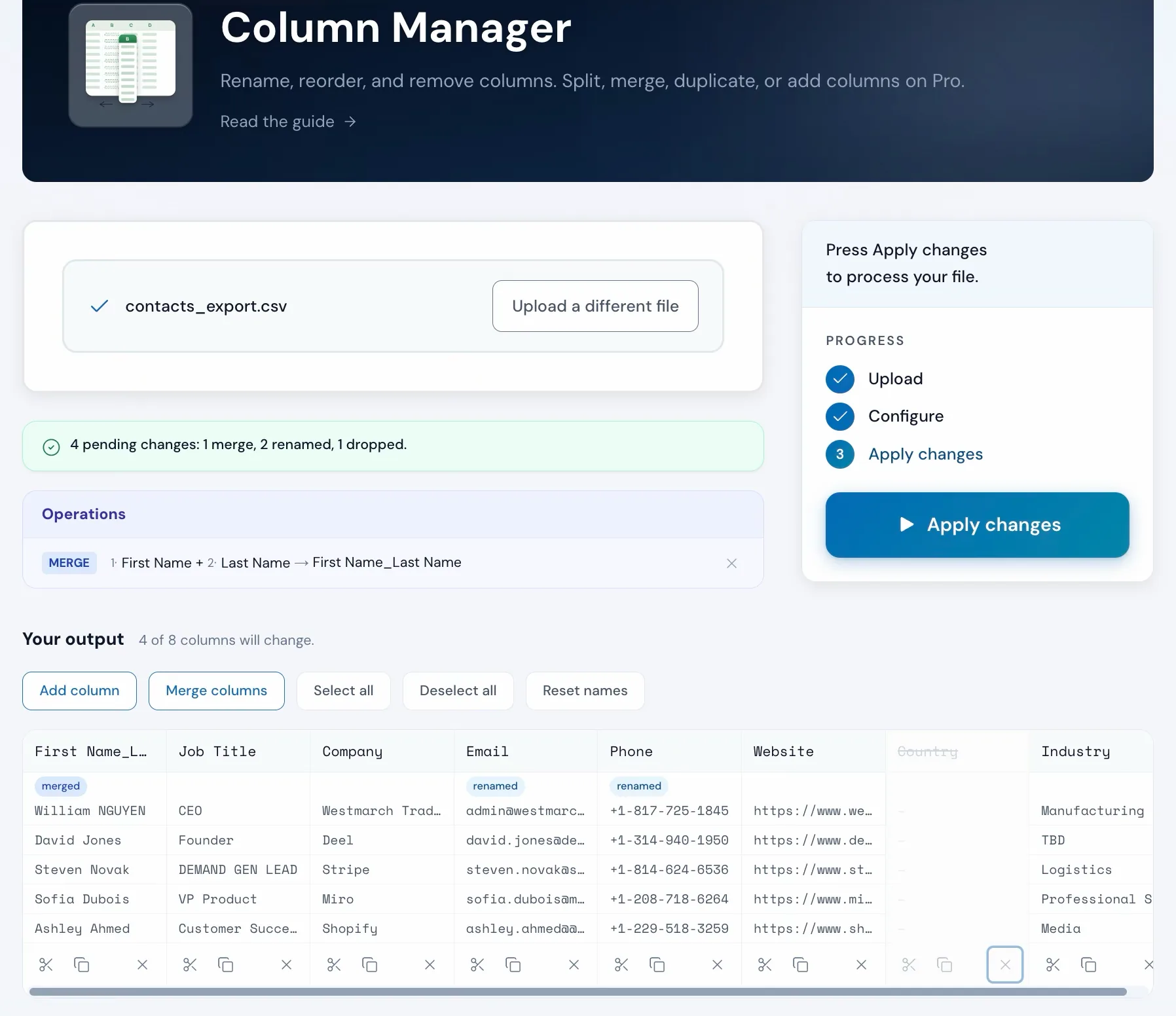
Combine two or more columns into one with your choice of separator (comma, space, dash, and more). Merge first and last name into a full name, or join city, state, and postcode into a single address field.
Duplicate columnsPro
Copy a column to a new name while keeping the original. Useful when you want to reshape a value without losing the source, or when your target schema needs the same data under two different field names.
Add columnsPro
Add a column and fill it three ways: one fixed value in every row, values from your own rules (Enterprise over 1,000 employees, otherwise SMB), or a value derived from another column.
How to use it
Three steps, one clean file
Upload your file
Drag and drop any CSV or Excel file. Operelio reads every column and shows them in a list.
contacts_export.csv
9 columns detected
Configure your changes
Rename, reorder, and remove on every plan. Split, merge, duplicate, or add columns on Pro. Preview updates live as you work.
Download the result
Click Apply changes to download the finished file. Your row data is untouched. Only the column layout changes.
The alternative
Doing it yourself
This is what it looks like in Excel or Google Sheets.
In Excel or Google Sheets
10-20 minutes per file
Error-prone for files with many columns. Cut-paste can break formulas and references.
With Operelio
Under 30 seconds
One pass, one download. Your row data is never modified. Undo by re-uploading the original.
Wrong columns might not be the only problem in that file
Upload it and Bridgeant reviews the file before you commit to a tool. It reports what it finds, orders the problems by how much they actually matter, and points you at the tool for each one. That is on every plan including Free, and it works from a summary of your file rather than the contents.
On Pro and up it stops advising and starts doing. Describe the job in a sentence and Bridgeant plans the steps, shows you the plan, and runs them in the right order once you approve. You are not running four jobs by hand and trying to remember which came first.
See how Bridgeant worksPricing
Free for rename, reorder, and remove. Pro for the rest.
Row limits: up to 2,000 on Free, 50,000 on Pro, 75,000 on Team, and 150,000 on Agency. Split, merge, duplicate, and add columns are Pro-only.
Common questions
Column Manager FAQ
Does this change my data or just the column headers?
Only the column layout changes: names, order, and which columns are included. All row data is preserved. Split and merge create new columns from existing data but never delete row values.
How do I split a name column into first and last name?
Add a split operation, pick the column, and set the delimiter to space. "John Smith" becomes "John" in one column and "Smith" in another. You choose how many parts to create and name each output column.
How do I merge two columns?
Add a merge operation, pick the columns, and choose a separator (comma, space, dash, and more). Name the output column. Merge "First Name" and "Last Name" with a space to get a full name column.
Can I duplicate a column?
Yes, on Pro, Team, and Agency. The duplicate operation copies a column to a new name while keeping the original. Useful when your target schema needs the same data under two different field names.
How do I add a new column?
On Pro, Team, and Agency. Add an add-column operation, name the column, and choose how to fill it: one fixed value for every row, different values from your own rules, or a value worked out from another column, like a seniority level from job titles or the domain from an email address. Your existing rows are never changed.
Can I run multiple changes in one job?
Yes. Rename, reorder, remove, split, merge, duplicate, and add columns can all be configured at once and applied in a single job with one download at the end.
What file formats does it support?
Upload .csv, .xlsx, or .xls files. Output as CSV or Excel.
Does it work with multi-tab workbooks?
Yes. The tool reads the workbook's first tab by default, and a tab picker under the upload switches to any other. To reshape columns across every tab at once, combine the tabs into one list in Merge Files first.
What plan do I need?
Rename, reorder, and remove are free on every plan. Split, merge, duplicate, and add columns require Pro, Team, or Agency. Row limits apply: up to 2,000 on Free, 50,000 on Pro, 75,000 on Team, and 150,000 on Agency.
Works well with
Want the full walkthrough? Read the Column Manager guide →
Your columns, sorted in one pass.
Upload a file, configure every change, and download the finished result. Rename, reorder, and remove are free on every plan.