
Transpose free · Unpivot & Group across on Pro
Transpose or unpivot your spreadsheet
Upload a CSV or Excel file and Operelio flips rows and columns. On Pro, unpivot wide data into long format for pivot tables, charts, and database imports, or group repeated rows across into one row per company for CRM imports.
No credit card required. Transpose your first file without the manual work.
What it does
Three modes: Transpose, Unpivot, and Group across
Flip rows and columns
Every row becomes a column and every column becomes a row. A 3-row, 10-column table becomes a 10-row, 3-column table.
First column as headers
Turn on "Use first column as headers" and the values in column A become your new column headers after transposing. Useful for label-in-first-column layouts.
CSV and Excel supported
Upload .csv, .xlsx, or .xls files. Output as CSV or Excel. Short rows are padded so nothing breaks.
Unpivot wide data to long formatPro
Turn columns into rows. Pick which columns to keep as identifiers and which to collapse, and Operelio turns them into a name-value pair per row. Ideal for preparing data for charts, pivot tables, or database imports.
Name your label and value columnsPro
When you unpivot, pick the names for the two new columns. Call them Month and Revenue, or Region and Total. Pick whatever makes sense for your data.
Group repeated rows acrossPro
Turn a long list with many rows per company into one row per company. Pick the column that defines a group and the columns that repeat, and each row lays across as a numbered set: Contact name 1, Phone 1, Contact name 2, Phone 2.
Predictable order, capped widthPro
Groups appear in the order they first show up in your file, and a group's first row becomes set 1. Sets cap at 50 per row, and the results tell you if any rows were left out.
Keep the rest of the rowPro
Columns that don't repeat, like a website or industry column, ride along from each group's first row. Or switch them off and keep just the group column and the numbered sets.
Preview before you run
See the transposed, unpivoted, or grouped output before committing. Check that your headers landed in the right place. Nothing runs until you click the button.
How to use it
Three steps to reshape your data
Upload your file
Drag and drop any CSV or Excel file. Operelio reads your data and detects columns for you.
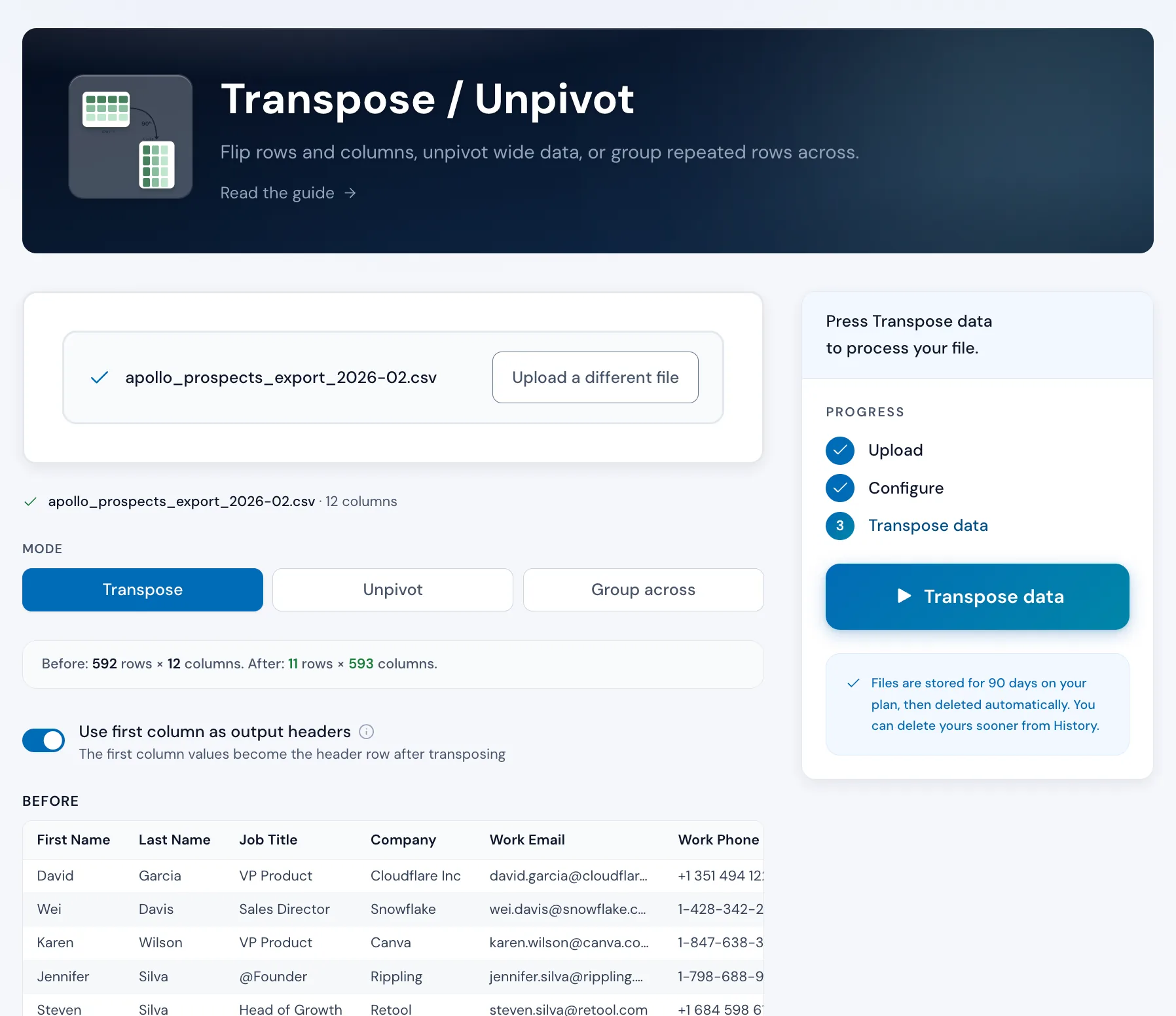
apollo_prospects_export_2026-02.csv
12 columns, 592 rows
Pick your mode
Choose Transpose to flip rows and columns. On Pro, Unpivot turns columns into rows, and Group across turns repeated rows into one row per group.
Preview and download
Check the preview to make sure your headers and data look right. Then click Run and download the result.
The alternative
Doing it yourself
This is what transposing looks like without a tool.
In Excel or Google Sheets
5-10 minutes per file
Paste Special works but only on static values. Cell references break, and if the file is large you may need to transpose in chunks.
With Operelio
Under 10 seconds
Works on any file size. Your original data is never modified. Run it again whenever you get a new export.
The wrong shape might not be the only problem in that file
Upload it and Bridgeant reviews the file before you commit to a tool. It reports what it finds, orders the problems by how much they actually matter, and points you at the tool for each one. That is on every plan including Free, and it works from a summary of your file rather than the contents.
On Pro and up it stops advising and starts doing. Describe the job in a sentence and Bridgeant plans the steps, shows you the plan, and runs them in the right order once you approve. You are not running four jobs by hand and trying to remember which came first.
See how Bridgeant worksPricing
Transpose is free. Unpivot and Group across are Pro.
Transpose is included on every plan. Unpivot turns columns into rows, and Group across turns repeated rows into one row per group; both require Pro, Team, or Agency. Row limits apply: up to 2,000 on Free, 50,000 on Pro, 75,000 on Team, and 150,000 on Agency.
Common questions
Transpose & Unpivot FAQ
What is the difference between transpose and unpivot?
Transpose flips your entire table so rows become columns and columns become rows. Unpivot takes specific columns and collapses them into rows. For example, if you have Jan, Feb, Mar columns, unpivot turns them into a Month column and a Value column. Transpose is free, unpivot requires Pro.
Will transposing change any of my data?
No. Your original file is never modified. Operelio creates a new file with the transposed data. All cell values are preserved exactly as they were.
What does "use first column as headers" do?
When this option is on, the values in column A of your original file become the column headers in the transposed output. Useful when your first column contains labels like month names, metric names, or categories.
Can I transpose Excel files or only CSV?
Both. Upload .csv, .xlsx, or .xls files. The tool reads any of these formats and outputs the transposed result as CSV or Excel.
Does it work with multi-tab workbooks?
Yes. The tool reads the workbook's first tab by default, and a tab picker under the upload switches to any other, so you transpose exactly the tab you mean.
How big a file can I process?
Up to 2,000 rows on Free, 50,000 rows on Pro, 75,000 rows on Team, and 150,000 rows on Agency. File size limits are 2 MB on Free, 25 MB on Pro, 35 MB on Team, and 100 MB on Agency. This applies to all three modes.
When would I use unpivot instead of transpose?
Use unpivot when you have data spread across multiple columns that should really be rows. For example, if you have columns for Jan, Feb, Mar with revenue values, unpivot turns those into a Month column and a Revenue column. This format is what most charting tools expect.
What does Group across do?
Group across turns a long list with several rows per group into one row per group. A contact list with five rows for the same company becomes one row for that company, with the contacts numbered across: Contact name 1, Phone 1, Contact name 2, Phone 2. Some CRMs only accept contacts in this layout. Sets cap at 50 per row, and the results tell you if any rows were left out. Group across requires Pro.
Works well with
Want the full walkthrough? Read the Transpose / Unpivot guide →
Transpose or unpivot without the manual work.
Upload a file. Pick your mode. Download the result.