
Free on every plan · Unlimited rules on Pro
Find & replace across every cell
Bulk find and replace for CSV and Excel files. Target specific columns or run across the whole file. Preview every change before you apply.
No credit card required.
What it does
Full control over every replacement
Multiple rules
Build a chain of find-and-replace rules that run in order, so rule 2 works on the output of rule 1. Up to 3 on Free, unlimited on Pro.
Column targeting
Apply a rule to specific columns or to the entire file. Replace "N/A" only in the "status" column without touching other fields.
Match modes
Choose case-sensitive or insensitive. Match whole words only (so 'cat' does not match 'category'), or require the full cell value (so 'UK' does not match 'UK office').
Preview before applying
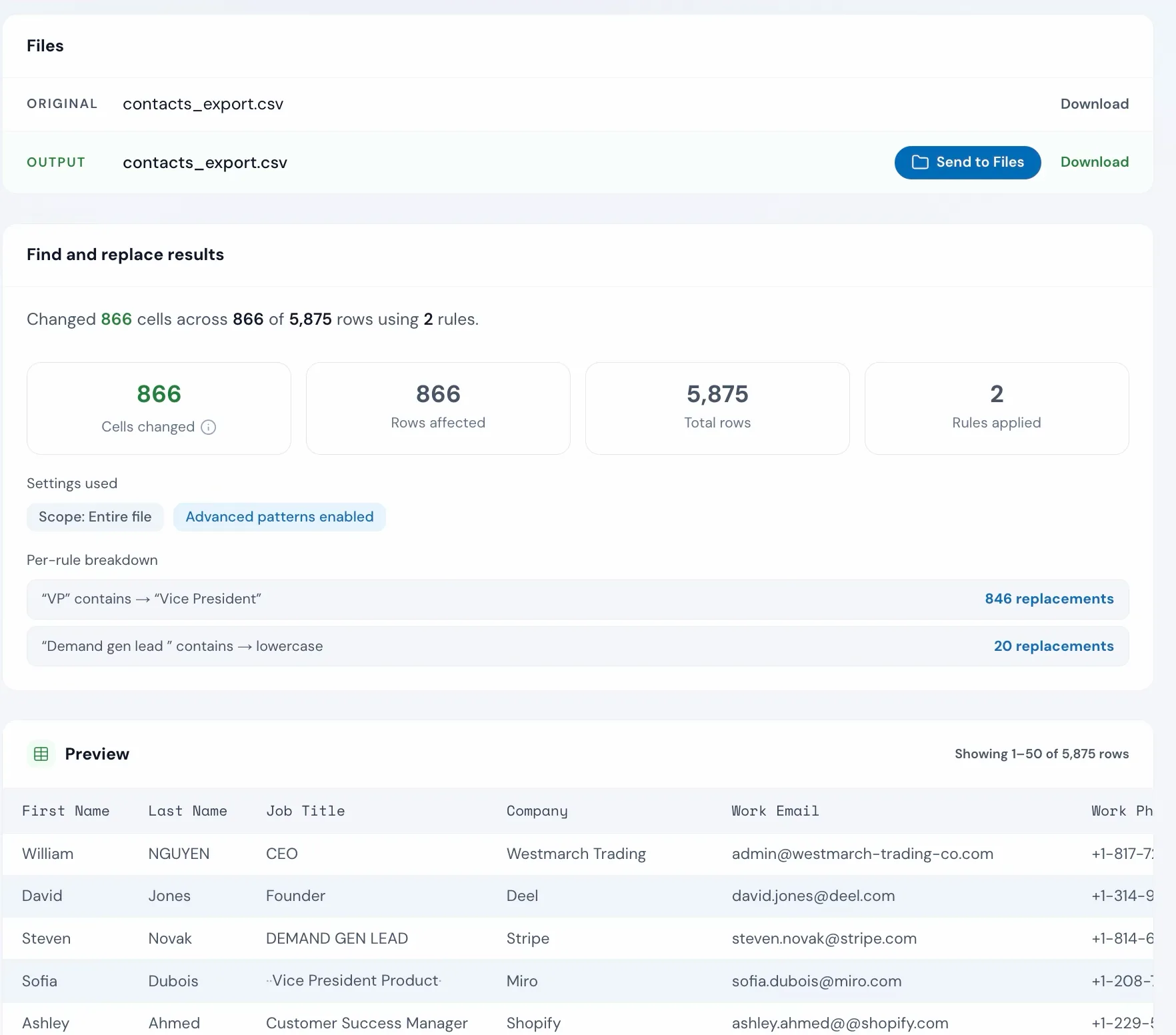
See the exact number of matching cells before you click Find and replace. Nothing changes until you confirm.
Advanced patternsPro
Match complex formats like phone numbers, postcodes, or email shapes. Capture matched parts and rewrite them, useful when plain text search can't describe the pattern.
Case transformsPro
Convert matched text to uppercase, lowercase, or title case. Standardize capitalization across an entire column without writing a formula.
How to use it
Three steps to bulk edit
Upload your file
Drag and drop any CSV or Excel file. Operelio reads it and lists your columns so you can pick which ones to edit.
contacts_export.csv
8 columns, 5,875 rows
Set up your rules
Enter what to find, what to replace it with, and which columns to target. Add up to three rules on Free, unlimited on Pro.
846 matches · rule 1 of 2
Preview and apply
Check the match count, then click Find and replace. Download your updated file with all replacements applied.
The alternative
Doing it yourself
This is what bulk editing looks like without a tool.
In Excel or Google Sheets
2-10 minutes per rule
No preview of which cells will change. Scoping to one column means selecting it first. Rules run one at a time with no way to batch them.
With Find & Replace
Under 30 seconds
All rules run in one job. Preview shows exact match count before anything changes. Target specific columns without selecting cells.
Inconsistent values might not be the only problem in that file
Upload it and Bridgeant reviews the file before you commit to a tool. It reports what it finds, orders the problems by how much they actually matter, and points you at the tool for each one. That is on every plan including Free, and it works from a summary of your file rather than the contents.
On Pro and up it stops advising and starts doing. Describe the job in a sentence and Bridgeant plans the steps, shows you the plan, and runs them in the right order once you approve. You are not running four jobs by hand and trying to remember which came first.
See how Bridgeant worksPricing
Free with up to three rules. Pro adds advanced patterns and more.
Plain text find and replace with up to three rules is free on every plan. Pro, Team, and Agency add unlimited rules, advanced patterns, and case transforms (uppercase, lowercase, title case). Row limits: 2,000 on Free, 50,000 on Pro, 75,000 on Team, 150,000 on Agency.
Common questions
Find & Replace FAQ
How many rules can I use at once?
Free accounts can use up to three rules per job. Pro, Team, and Agency have no limit.
Can I target a specific column instead of the whole file?
Yes. Each rule can target one or more specific columns, or search the entire file if no column is selected.
What's the difference between exact match and whole word?
Exact match means the entire cell must equal your search term. Whole word means the term must appear as a standalone word, not part of a longer word. Searching for "at" with whole word on would not match "cat".
Does it work with multi-tab workbooks?
Yes. The tool reads the workbook's first tab by default, and a tab picker under the upload switches to any other. To run one find and replace across every tab at once, combine the tabs into one list in Merge Files first, then split the cleaned list back into tabs.
Do I need Pro for case-sensitive search?
No. Case-sensitive search is free. Pro adds advanced patterns and case transforms (uppercase, lowercase, title case).
Can I use advanced patterns?
Yes, on Pro, Team, and Agency. Turn on the Advanced patterns checkbox on any rule and enter a pattern like a phone number format or an email shape. You can also use capture groups in the replacement value.
Will I see how many cells match before applying?
Yes. The preview shows the exact match count for each rule before you click Find and replace. Nothing changes until you confirm.
Works well with
Want the full walkthrough? Read the Find & Replace guide →
Stop editing cells one at a time.
Upload your file, set your rules, apply in one click. Free on every plan.